
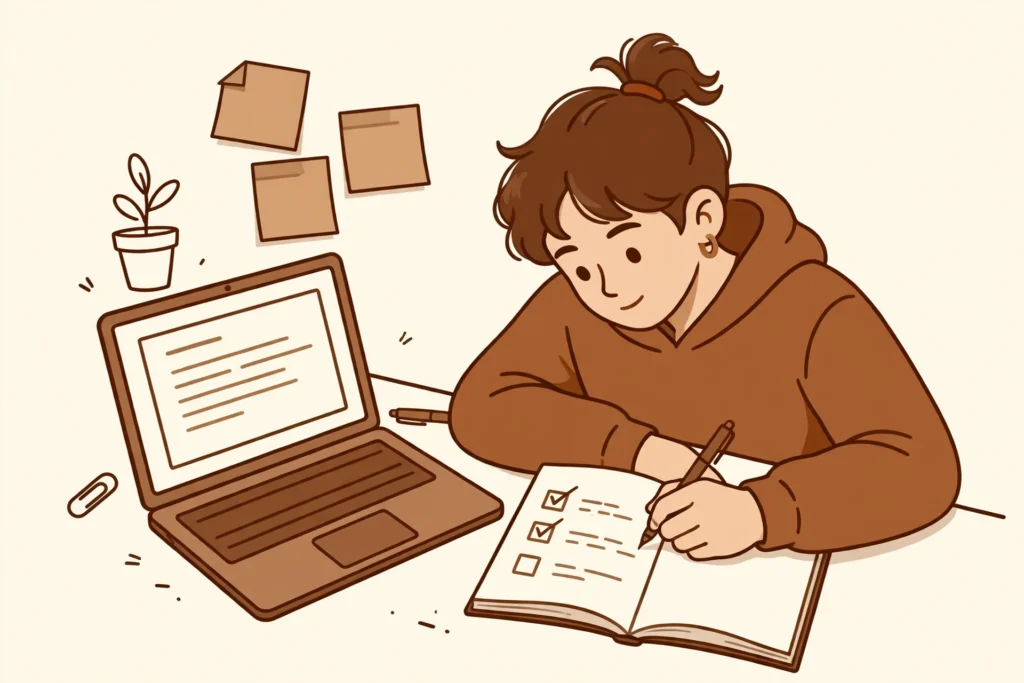
The best free note-taking apps for students solve a simple problem: a lecture ends, and your notes are in three places. Part of the lesson is in a notebook, a key date is in a phone app, and the reading list is still on a loose sheet of paper. When revision starts, you spend the first hour looking for notes instead of reading them. That scattered start is the real problem, and it is easy to fix with one main place for class notes.
In short: Start with Google Keep for quick class notes, Microsoft OneNote for organised subject notebooks, and Notion for assignments and shared group work. Add Obsidian for linked revision notes, Joplin for notes you want to keep in an open format, and Evernote for clipping and searching research. Pick one, move your current notes into it, and check it after a week.
In this guide
- Google Keep – quick class notes
- Microsoft OneNote – organised subject notebooks
- Notion – assignments and shared group notes
- Obsidian – linked revision notes
- Joplin – notes in an open format
- Evernote – clipped research notes
- How to pick one
- Common mistakes to avoid
- Quick check before you finish
- Final thoughts
Google Keep – quick class notes
Best for: quick class notes you need to catch before the point is lost.
Keep is built for short notes. Open it, type the point, and move on. That speed matters in a lecture, when a long note would mean missing the next point. Use one note for one idea, and give it a short title you will recognise later, such as the topic and the date.
Labels and reminders help Keep stay useful. A label for each subject keeps short notes from turning into one long list, and a reminder can bring a deadline back at the right time. When a short note grows into a full assignment draft, move it to a longer document and leave a short pointer in Keep, so you still know where it went.
Microsoft OneNote – organised subject notebooks
Best for: organised revision notebooks, with a separate section for each subject.
OneNote works like a set of notebooks, and that shape suits school and college work. Make one notebook for each subject, then add a section for each topic inside it. When you need a topic for revision, you open that section, not a pile of files with similar names.
OneNote’s own site describes it as a way to take notes anywhere for free, so it is a fair first choice if you already use a Microsoft account. Put class notes, handouts, and your own summaries in the same section. That way, a short summary sits next to the detailed notes it came from, and revision does not mean hunting through separate folders.
Notion – assignments and shared group notes
Best for: assignments and shared group notes, where tasks and notes need to stay together.
Notion suits work that has more than one part. A page can hold the assignment brief, your notes, and a list of tasks, so the plan and the writing sit in one place. For group work, a shared page can hold who is doing what, which stops the usual problem of three versions of the same document.
Notion lists a free plan on its pricing page, with paid plans for extra features. Start with the free plan for class work, and only look at a paid plan if you hit a limit that actually blocks your work. Keep the structure simple at first: one page per assignment, with tasks at the top and notes below.
Obsidian – linked revision notes
Best for: organised revision, where one topic links to another.
Obsidian describes itself as a free and flexible app for private thoughts, and it stores notes on your device. That setup suits revision notes you want to keep for a whole course. Write a short note for each topic, then link related notes to each other, such as a definition to the example that explains it.
The links are the point. When you revise one topic, the linked notes show what it connects to, and gaps become clear. If a topic has no links, that is often a sign that it needs a worked example or a short summary of its own. Keep notes short, and let the links do the joining work.
Joplin – notes in an open format
Best for: class and assignment notes you want to keep in an open format, across devices.
Joplin is an open-source note-taking app, and its site says your notes are saved to an open format. That matters if you do not want your course notes locked into one app for years. You can organise notes into notebooks, add images and files to a note, and search across them when revision starts.
Use Joplin for notes you will return to often, such as a running set of notes for a module. Keep one notebook per module, and use the search box before you start a new note, so you do not write the same summary twice in two places.
Evernote – clipped research notes
Best for: clipped research notes, where web pages and readings need to stay with your own notes.
Evernote is a good fit when your notes start with reading. Its site offers a free start, and it is built around capturing notes, tasks, and schedules in one place. Save the useful page, add your own short summary in your own words, and tag it with the topic, so the source and your summary are found together.
Do not clip everything. Clip the page you will actually use, write two or three lines about why it matters, and note the assignment it relates to. A clipped page with no summary is just another saved link, and it will not help on revision day.
How to pick one
Start with how you take notes, not with the longest feature list. If most of your notes are short and fast, Keep is the easiest start. If you like notebooks and sections, OneNote will feel familiar. If your work is mostly assignments and group tasks, Notion keeps the plan and the notes together.
Think about revision, too. Obsidian suits students who like to link topics, Joplin suits students who want their notes in an open format, and Evernote suits students whose notes start with reading and research. Pick the one that matches the work you already do, and give it one full week of real classes before you judge it.
Check two practical points before you commit. First, make sure the app works on the phone and computer you actually use, so notes are there when you need them. Second, check whether the free start covers the way you take notes, and whether a paid upgrade is needed for a feature you cannot do without. Do not pay for a feature until you have missed it in real work.
Common mistakes to avoid
- Using three note apps at once, so no app holds the full set of notes.
- Copying whole slides into notes, instead of writing a short summary in your own words.
- Starting with a complex folder system, then giving up because it takes longer than taking notes.
- Saving links and pages with no summary, so you cannot tell later why you saved them.
- Waiting for a perfect setup before taking any notes, while classes keep moving on.
Quick check before you finish
You should finish with one main app, one notebook or page for each current subject, and your latest class notes in that app. Open it and find a note from last week in under a minute. If you cannot find it, the structure is too complex, or the note is still in another app.
One common error is easy to spot: a note with a vague title, such as “Notes” or “Class”. Rename it with the topic and the date, and add a one-line summary at the top. That small change makes revision much faster, because you can scan titles and know what each note holds.
Final thoughts
Try one app for your next week of classes, and move only your current notes into it. Leave old notes where they are until you need them, and move them over one topic at a time. A note app helps when it holds your real class work, not when it holds a perfect empty system.
When the week is over, look at what worked. If you found notes quickly and revision felt calmer, keep that app and tidy it a little. If you kept reaching for another app, switch once, move your current notes, and stick with the new choice for another week.
Related guide
For a simple way to review a shared document with a study group, see also: How to Use Google Docs Comments and Suggestions to Review a Document in 20 Minutes.
To sort the mail that comes with group work and assignments, see also: How to Organise Gmail with Labels and Filters in 15 Minutes.