
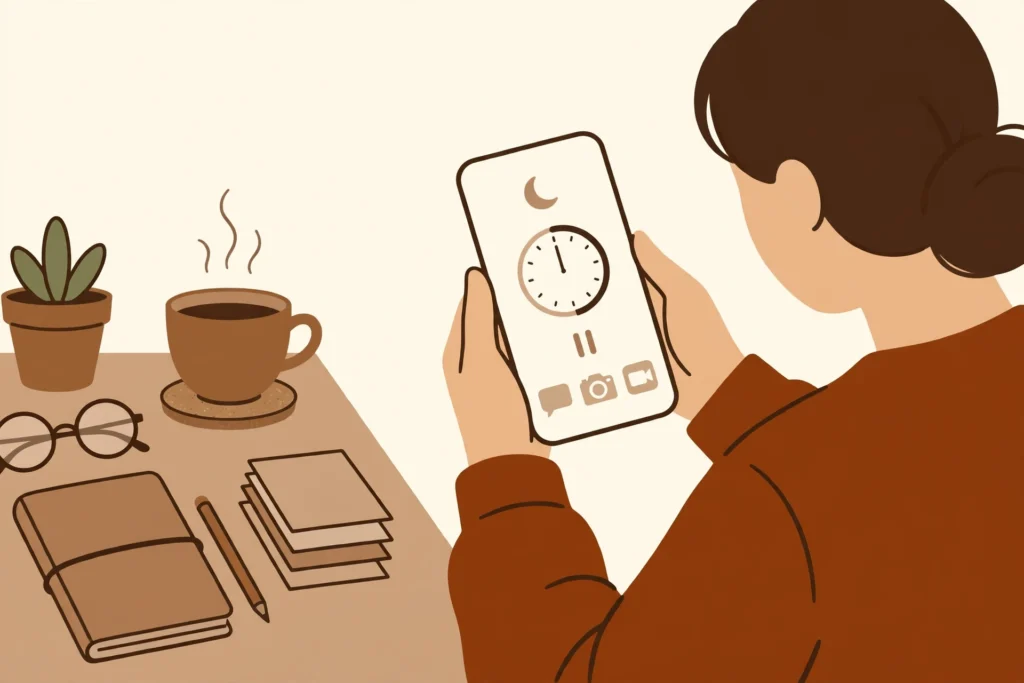
You sit down to study at nine in the morning, phone face down and notes open. Ten minutes later a short video pulls you in, then a group chat, then a news feed. By the time you look up, half an hour is gone and the work is still waiting. The phone did not break your focus on its own. It just put the next distraction one tap away.
Focus mode and app timers change that trade. Focus mode pauses the apps you pick, so they stop interrupting you while it is on. App timers set a daily limit for an app, so the app is paused once you reach that limit. Together, they give you a clear boundary: the phone can still reach you, but it cannot keep pulling you back.
In short: Open Settings, then Digital Wellbeing, turn on Focus mode for the apps that distract you most, set a daily app timer for each one, and keep calls and messages allowed so you can still be reached. The example in this guide uses work or study hours, with social apps paused and calls and messages left open.
In this guide
- Step 1: Find Digital Wellbeing on your phone (3 minutes)
- Step 2: Turn on Focus mode and pick the apps to pause (4 minutes)
- Step 3: Set a daily timer for each distracting app (3 minutes)
- Step 4: Set a schedule and keep calls and messages open (3 minutes)
- Step 5: Test it and adjust it after one day (2 minutes)
- Common mistakes to avoid
- Quick check before you finish
- Final thoughts
Step 1: Find Digital Wellbeing on your phone (3 minutes)
Open Settings on your phone. Scroll down and tap Digital Wellbeing. If you cannot see it in the list, tap the search box at the top of Settings and type Digital Wellbeing, then tap the result. That opens one screen with your screen time, Focus mode, App timers and Bedtime mode in one place.
Before you change anything, decide which apps pull you away most. For this guide, that means social apps during work or study hours. Write down two or three names, not ten. A short list is easier to keep, and you can add more later if you need to.
One plain note: menu names can differ slightly by phone brand, and the exact place of Digital Wellbeing can vary too. Most Android phones include it, but if your phone shows a different name for the same screen, follow the closest match and check each step as you go. Do not assume a feature is on every phone if your phone does not show it.
Step 2: Turn on Focus mode and pick the apps to pause (4 minutes)
In Digital Wellbeing, tap Focus mode. You will see a list of apps. Tap each app you want to pause, such as the social apps from your short list. A tick or a highlighted name shows that the app is selected. Leave the Phone app and the Messages app unselected, so calls and texts can still reach you.
Now turn Focus mode on. The apps you picked will look greyed out on your home screen, and they will not open while Focus mode is on. That is the point: you are not deleting the apps or signing out of them. You are putting them out of reach for a set period, and you can turn Focus mode off again when that period ends.
If an app you need for work is on your paused list by mistake, go back and unselect it. Focus mode works best when it pauses only the apps that distract you, not the tools you need for the task in front of you.
Step 3: Set a daily timer for each distracting app (3 minutes)
Go back to Digital Wellbeing and tap App timers. Tap the app you want to limit, then set a daily time. For example, set 45 minutes a day for your main social app. That timer counts only the time you actually use that app, and it starts again the next day.
When the time runs out, the app is paused for the rest of the day and its icon turns grey. That is a useful backstop for the hours when Focus mode is off. Focus mode covers a set period, such as work hours. An app timer covers the whole day, so an evening scroll cannot quietly undo a focused morning.
Set a timer for each app on your short list, one at a time. If you are not sure what limit to pick, start with the example above and change it later. A limit you can live with beats a strict limit you switch off on the first day.
Step 4: Set a schedule and keep calls and messages open (3 minutes)
Open Focus mode again and look for a schedule setting. Set it for the hours you want to protect. For example, set weekdays from 9 in the morning to 5 in the afternoon. Outside those hours, Focus mode stays off and your apps work as normal. If your phone calls this setting by a slightly different name, use the schedule or time option inside Focus mode.
Next, check what stays allowed. Make sure the Phone app and the Messages app are not on the paused list. That way, a call can still come through and a message can still arrive while social apps stay paused. If you use a different app for important calls or messages, keep that one allowed too, and pause only the apps that distract you.
Bedtime mode sits in the same Digital Wellbeing screen, but it is a separate setting for the night. You do not need it for this guide. Leave it off for now unless you also want quieter nights, and keep this setup focused on work or study hours.
Step 5: Test it and adjust it after one day (2 minutes)
Turn Focus mode on and try to open one of the paused apps. It should not open, and you should see a note that the app is paused. Then check your app timer: open Digital Wellbeing, tap App timers, and check that the limit you set is still there. If either check fails, go back to that step and set it again before you move on.
Use the setup for one full day, then look at Digital Wellbeing again. If you kept hitting the timer early in the day, raise it a little. If you barely noticed the limit, lower it a little. Small changes after a real day of use work better than guessing a perfect number at the start.
Common mistakes to avoid
- Pausing every app at once, including maps, banking or work tools you actually need.
- Setting a very low timer, hitting it by mid-morning, and then switching the whole setup off.
- Pausing social apps but leaving the Phone and Messages apps paused too, so important calls cannot reach you.
- Setting a schedule for weekdays only, then wondering why nothing is paused at the weekend, or the other way round.
- Turning Focus mode off the first time an app is paused, and never turning it back on again.
Quick check before you finish
Work through this check while Focus mode is on. Try to open a paused social app: it should stay paused. Open Digital Wellbeing and check that each app timer shows the limit you set. Check that the Phone app and the Messages app are not paused, and that your schedule shows the hours you chose, such as weekdays from 9 in the morning to 5 in the afternoon.
For a real test, ask someone to call you while Focus mode is on. The call should still come through. If it does, and the paused apps stay paused, your setup is doing what you asked it to do: quiet on distractions, open for people who need you.
Final thoughts
Start small. One short list of apps, one schedule, and one daily timer are enough for the first week. You can add an app or change a time later, once you know how the setup feels on a normal day.
If the setup feels too strict, loosen it rather than switching it off. A setup you keep is worth more than a strict setup that lasts one morning. Adjust the timer, shorten the schedule, or remove one app from the paused list, and keep the rest in place.
Related guide
To sort the mail that piles up while you focus, see also: How to Organise Gmail with Labels and Filters in 15 Minutes.
To review a shared document without a long chat thread, see also: How to Use Google Docs Comments and Suggestions to Review a Document in 20 Minutes.