
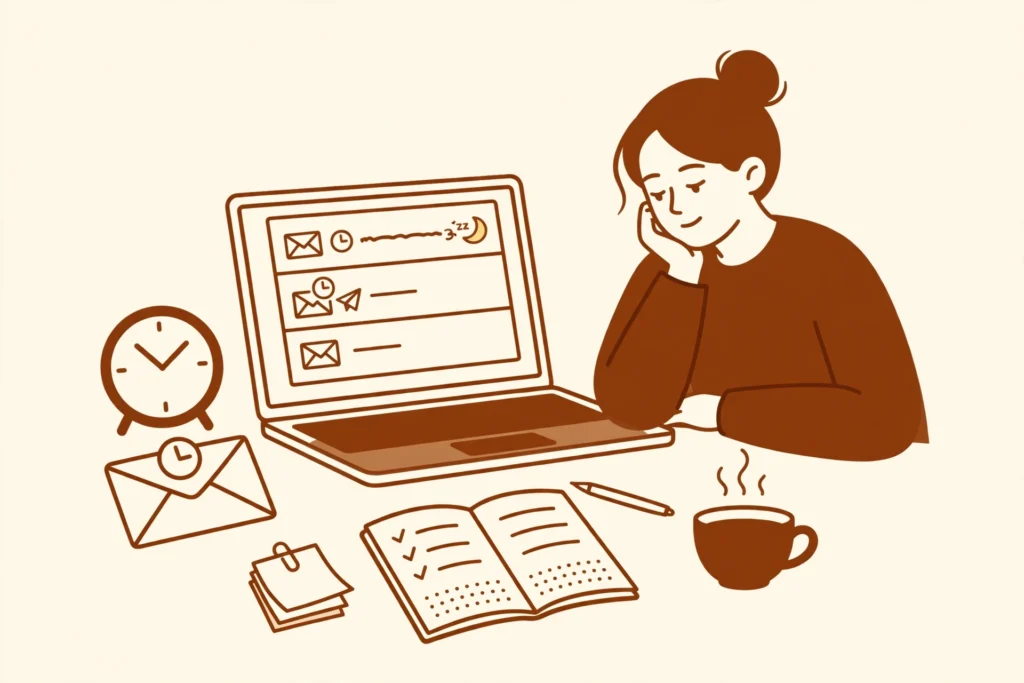
An email lands at the worst moment. Maya writes on Friday afternoon about a walk in the park on Saturday, while you are in the middle of work and cannot answer properly. You either leave it sitting in your inbox, where it gets buried, or you fire off a rushed reply and spot the mistake the second you press Send. Gmail has a calmer way to handle all three moments: hide the email until you are ready, send your reply at a better time, and pull back a message you sent too fast.
In short: Snooze moves Maya’s weekend walk email out of your inbox and brings it back at a time you choose. Schedule send holds your reply until the time you pick. Undo send pulls back a message you just sent, if you click Undo in the bottom-left notice before the short window ends.
In this guide
- How to snooze an email
- How to schedule send
- How to undo send
- When to use which
- Common mistakes to avoid
- Quick check before you finish
- Final thoughts
How to snooze an email in Gmail
Snoozing does not delete an email and does not mark it as done. It takes the email out of your inbox for a while and brings it back to the top of your inbox at the time you pick. That makes it a good fit for Maya’s weekend walk email: it arrived while you were busy, but you still need to answer it before Saturday.
- On your computer, open Gmail.
- Point to Maya’s email about the Saturday walk. You do not need to open it first.
- On the right, click Snooze.
- Choose a later day and time to get the email back. For this example, pick Friday evening, when you have time to read it properly and reply.
If you want to snooze more than one email, select the messages first, then click Snooze at the top. If you cannot see Snooze there, click More and then Snooze.
To find a snoozed email before it comes back, click Mail on the left and then Snoozed. You can also type in:snoozed in the search bar at the top. When Friday evening arrives, Maya’s email returns to the top of your inbox, ready for a proper reply.
How to schedule an email in Gmail
Schedule send is different from snoozing. The email is yours, not one you received, and you are choosing when it leaves your outbox. Say you write your reply to Maya late on Friday night, confirming the walk at 10 on Saturday morning at the park gate. You do not want to send a message that late, but you do want Maya to see it in good time on Saturday morning. Schedule it instead of sending it straight away.
- In Gmail, click Compose for a new message, or open Maya’s email and start a reply.
- Write your reply, for example: “Yes, see you at 10 on Saturday at the park gate.”
- Do not click Send. At the bottom left, next to Send, click the Down arrow.
- Click Schedule send.
- Pick a suggested time, or click Pick date & time to choose your own, then click Schedule send. For this example, pick Saturday at 8 in the morning.
Your reply now waits in Gmail until Saturday at 8. If your plans change before then, click Scheduled on the left, open the message, and click Cancel send to stop it and edit it again.
How to undo a sent email in Gmail
Undo send is for the moment just after you press Send. Imagine you send your reply to Maya in a hurry and then notice you typed 9 instead of 10 for the walk. Gmail does not give you days to fix this. It gives you a short window, right after sending, and then the message goes.
- Send the message as normal.
- Look at the bottom left of the screen, where you will see “Message sent”.
- Click Undo in that notice. Do not click View message instead, or the window may pass while you are reading.
- Your draft opens again. Change 9 to 10, check the rest of the reply, and send it again.
You can give yourself more room before you need it. In the top right, click Settings and then See all settings. Next to Undo send, choose a Send cancellation period of 5, 10, 20 or 30 seconds, then click Save changes at the bottom. The window is short either way, so it helps to read a message once more before you send it, rather than relying on Undo every time.
When to use which
Use snooze when an email has arrived but you cannot act on it yet. Maya’s walk invitation on a busy Friday afternoon is a snooze case: the email is fine, the timing is wrong.
Use schedule send when your message is ready but the time is wrong. Your reply to Maya is written late on Friday night, so you hold it until Saturday morning, when it will be useful.
Use undo send when the message has already gone and you spot a mistake at once. It is a safety net for a wrong time, a wrong name, or a missing attachment, not a way to take back a message hours later.
Common mistakes to avoid
- Snoozing past the point of use. If the walk is on Saturday morning, a snooze time on Saturday afternoon is too late. Pick a time before you need to act.
- Sending a second copy of a scheduled message. A scheduled reply is already waiting in Scheduled. If you write and send the same reply again, Maya gets it twice.
- Clicking the wrong option after sending. After you send a message, click Undo, not View message, if you want to stop it.
- Forgetting a scheduled message. Check Scheduled if your plans change, so an old reply does not go out after you have already changed the arrangement.
- Treating snooze as archive. A snoozed email comes back. If you never want to see it again, archive or delete it instead.
Quick check before you finish
- Is Maya’s original email in Snoozed, with a return time before Saturday morning?
- Is your scheduled reply in Scheduled, set for Saturday at 8 in the morning?
- Does your reply say 10 at the park gate, not 9?
- Have you set your Undo send period in Settings, under See all settings, and clicked Save changes?
- Did you click Undo, not View message, when you needed to stop a sent message?
Final thoughts
These three controls cover the three awkward moments in email: the message that arrives too early, the reply that should go out later, and the message that went out too fast. Try them with one real email first, like Maya’s weekend walk invitation, and the habit sticks because you can see what each one does. Once the timing is sorted, the next step is keeping the inbox itself tidy, which is where labels help.
Related guide
- How to Organise Gmail with Labels and Filters in 15 Minutes — sort the mail you keep, so invitations like Maya’s walk email are easy to find again.
- 10 Gmail Keyboard Shortcuts That Save Time — move through Gmail faster once snoozing, scheduling and undoing feel natural.