
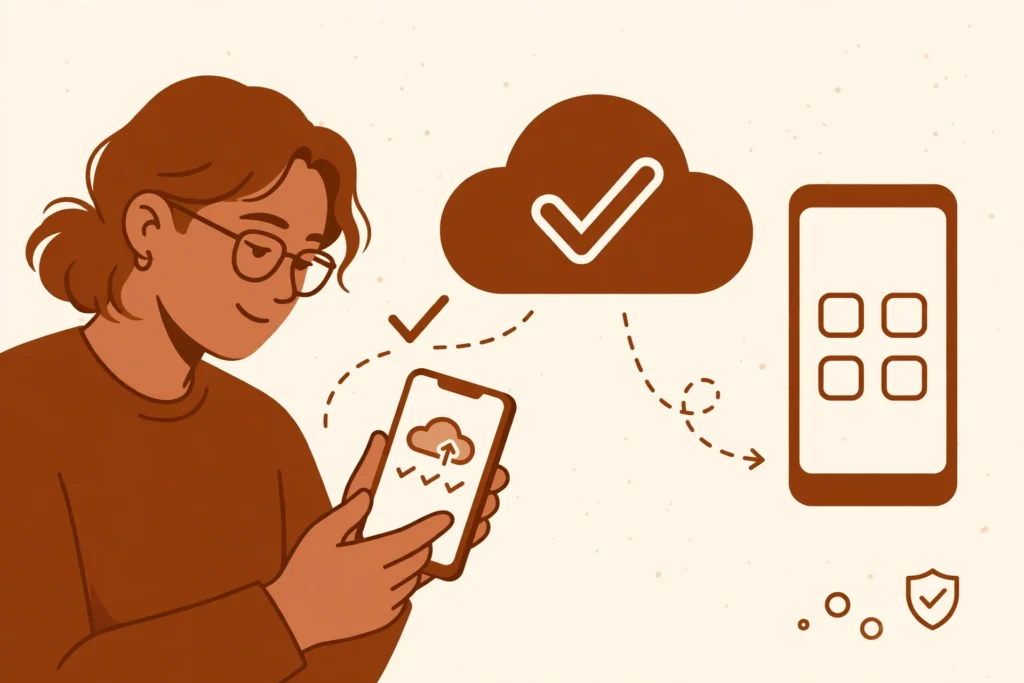
A new phone should feel like a fresh start, not a worry. The part that makes most people pause is WhatsApp: years of family chats, photos from a trip, and a few messages you still need are all on the old phone, and it is easy to wonder whether they will still be there after you switch. They can be, if you back up and restore WhatsApp at the right moment during setup.
In short: Back up WhatsApp on your old phone first, check the backup time, then install WhatsApp on the new phone, sign in with the same number, and tap Restore when it appears. Use the same cloud account you backed up to, and do not skip restore during setup.
In this guide
- Backup steps
- Check your backup
- Restore on a new phone
- If restore does not appear
- Common mistakes to avoid
- Quick check before you finish
- Final thoughts
Backup steps
Do this on your old phone before you move anything to the new one. Menu names can differ slightly by app version, so look for the same words even if the screen looks a little different. WhatsApp’s own backup guide is the place to check if a menu name has changed on your phone.
On Android
- Open WhatsApp, tap More options, then tap Settings.
- Tap Chats, then tap Chat backup.
- Tap Google Account and choose the Google Account you want to use for the backup.
- If you want videos in the backup, turn on Include videos.
- Tap Back up, and wait for it to finish.
If you want backups to keep happening on their own, choose a frequency other than Never in the backup settings, rather than relying on a single backup made once.
On iPhone
- Open WhatsApp, then tap Settings.
- Tap Chats, then tap Chat Backup.
- If your phone offers a choice, pick iCloud or WhatsApp cloud storage. WhatsApp says its cloud storage is still being built and tested, so it may not be offered to everyone yet.
- If you want videos in the backup, turn on Include Videos.
- Tap Back Up Now, and wait for it to finish.
Back up and restore WhatsApp: what a backup holds
A backup holds your chat history, including messages and media. Videos are the one part to check on purpose: they are only restored if Include videos or Include Videos was turned on before that backup was made.
One point is worth knowing in advance. WhatsApp says it cannot restore your chats for you, because your chat history is not stored on its servers. The backup in your own cloud account is the copy you will restore from, which is why checking it before you switch phones matters.
Check your backup
A backup that never finished is easy to miss, so check the time before you set up the new phone.
- On Android, open WhatsApp, tap More options, then Settings, Chats, and Chat backup.
- On iPhone, open WhatsApp, then tap Settings, Chats, and Chat Backup.
- Look for the time shown for your last backup, and make sure it matches the backup you just made.
- If the time is old, tap Back up or Back Up Now again, and wait until the time updates.
If the backup will not finish, check your internet connection and that you are signed in to the right cloud account. A backup made under a different account will not be the one your new phone finds later.
Restore on a new phone
Restore happens during setup, not later in the main chat list, so take this part slowly. Use the same phone number you backed up from, and sign in to the same cloud account on the new phone.
- Install WhatsApp on the new phone and open it.
- Agree and continue, then verify the same phone number you used for the backup.
- When WhatsApp finds a backup and asks you to restore, tap Restore. On iPhone, this button is labelled Restore Chat History.
- Let the restore finish. WhatsApp restores messages first, then photos, videos, and other media.
- Tap Next when asked, finish the profile setup, and wait for your chats to appear once setup is complete.
There is one switch that a backup cannot cross. WhatsApp says it is not currently possible to restore a backup made on Android on an iPhone, or a backup made on an iPhone on Android. If you are changing from one to the other, do not count on the usual backup restore to move your chats.
If restore does not appear
If no restore prompt appears, stop and check the basics before you set up more chats on the new phone. A new backup made on the new phone can replace the old one, so do not back up the empty new phone first.
- Check that you verified the same phone number used for the backup.
- Check that you are signed in to the same Google Account on Android, or the same iCloud or WhatsApp cloud storage account on iPhone, that you used for the backup.
- Go back to the old phone if you still have it, and check the last backup time again.
- Make sure the new phone has an internet connection and enough free space for the restore to download.
- On Android, make sure Google Play services are up to date, and that the phone is signed in to the right account.
- If a backup is not there at all, there is nothing for WhatsApp to restore, and you will need to go back to the old phone and make one while you still can.
On iPhone, be careful with one button in particular. WhatsApp says that if you tap Skip media restore, you will not be able to restore your media later, and the next backup can replace the old one. If media matters to you, let the restore finish instead.
Common mistakes to avoid
- Setting up the new phone with a different number, then wondering why the old chats are missing.
- Signing in to a different cloud account from the one used for the backup.
- Skipping restore during setup and carrying on with new chats, which makes the old backup harder to get back to.
- Backing up the new phone before restoring, which can replace the backup that held your old chats.
- Assuming videos are included when Include videos was off for the last backup.
- If chats are already missing, creating a new backup, deleting your backup, or resetting the phone before checking that a good backup exists.
Quick check before you finish
- The last backup time on the old phone matches the backup you made just before switching.
- The new phone uses the same number and the same cloud account as that backup.
- You tapped Restore during setup and let messages and media finish restoring.
- A few older chats and photos you care about are visible on the new phone before you wipe or hand on the old one.
Final thoughts
How to back up and restore WhatsApp comes down to one order: back up on the old phone, check the time, then restore during setup on the new one with the same number and account. Do that, and a new phone does not have to mean starting your chats from scratch. For the exact menus on your phone, check WhatsApp’s backup guide and WhatsApp’s restore guide at the time you do it.