
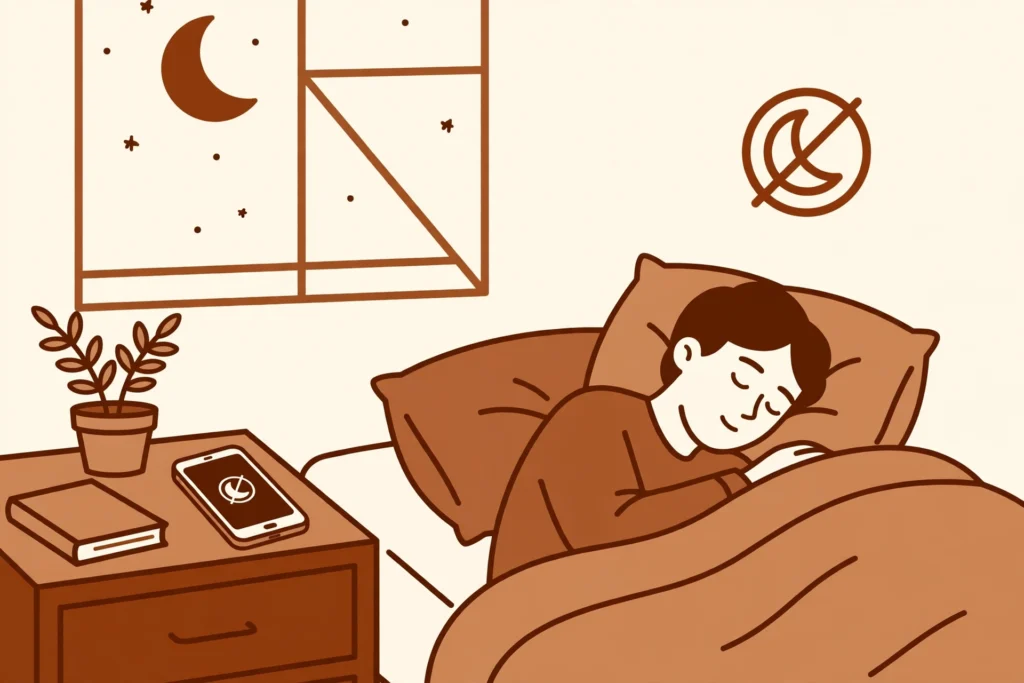
It is 11 at night and your phone lights up on the bedside table. You tell yourself you will only check one message, but the screen is bright, the feed is still moving, and twenty minutes later you are wide awake. The problem is rarely one loud call. It is the steady stream of small alerts that keeps your brain switched on long after you meant to sleep.
In short: Set Bedtime mode in Settings, Digital Wellbeing, Bedtime mode, then turn on Bedtime routine and pick your bedtime and wake-up time. Add Do Not Disturb for the same hours, and allow calls from people you choose. Your screen turns grey and quiet, so late notifications stop pulling you back to your phone.
In this guide
- Set up Bedtime mode
- Set up Do Not Disturb
- Bedtime vs Do Not Disturb
- Common mistakes to avoid
- Quick check before you finish
- Final thoughts
One note before you start: exact menu names can differ by phone brand and Android version. The paths below are the most common ones, checked against Android Help at the time of writing. If a name on your phone is slightly different, look for the same words in the same place, and use the search box at the top of Settings to find it.
Set up Bedtime mode
Bedtime mode is the night setting. It changes how your phone looks and sounds at bedtime, so the phone itself stops inviting you to keep scrolling.
Find Bedtime mode
Open Settings, then tap Digital Wellbeing, then Bedtime mode. On some newer phones, including newer Pixel phones, the same setting sits under Settings > Modes > Bedtime instead. Both routes lead to the same idea: a routine that starts at bedtime and ends in the morning.
Turn on a schedule
Tap Bedtime routine, then turn on Use a schedule. Pick a bedtime that gives you enough sleep, and a wake-up time that matches your normal morning. Keep the times honest. A bedtime of 10:30 that you can actually keep beats a bedtime of 9:30 that you ignore every night.
Choose which days the schedule runs. Most people want every day, because sleep does not reset at the weekend. If your weekend mornings are very different, set the wake-up time a little later for those days rather than switching the whole routine off.
Choose what Bedtime mode does
Tap Customise and look through the options on your phone. Grayscale turns the screen black and white, which makes photos and videos far less tempting. Keep the screen dark stops the screen from lighting up brightly at night. Do Not Disturb for Bedtime mode silences calls and alerts while the routine runs.
Look for the option to end Bedtime mode at your next alarm, so the phone returns to normal when you wake up. Some phones also offer Bedtime mode while charging, so plugging the phone in at night can start the same calm, dim screen. If you do not see a charging option on your phone, do not worry: the schedule alone does the main job.
Bedtime mode does not lock you out of your phone. You can still open an app if you really need to, and an alarm will still sound. The point is friction, not a lock. A grey, quiet screen makes the late-night scroll feel dull, and dull is exactly what you want at midnight.
Set up Do Not Disturb
Do Not Disturb is the silence setting. It stops most sounds, vibrations and on-screen alerts, while still letting the calls and messages you choose come through.
Turn it on
On many phones, open Settings, tap Sound & vibration, then Do Not Disturb, and tap Turn on now. On newer phones, the route is Settings > Modes > Do Not Disturb, then Turn on now. If you only need quiet for one night, turning it on by hand is enough. For sleep, a schedule is better, because you will forget to switch it on by hand on the nights you need it most.
Set a schedule
Look for Turn on automatically, then Add rule, then a Time rule. Name it something clear, like Sleep, pick the days, and set the same start and end times you used for Bedtime mode. Matching the two schedules matters: if Do Not Disturb ends an hour before Bedtime mode, that last hour is when the alerts creep back in.
On phones that use Modes, set the schedule inside the Do Not Disturb mode itself, under its schedule or automatic settings. The words differ, but the steps are the same: pick a name, pick the days, and pick the times.
Let the right calls through
Silence is only useful if you trust it. Open the People settings inside Do Not Disturb and decide who can reach you. On many phones you can allow calls from Starred contacts, or pick individual contacts to allow. If your phone shows a Modes screen instead, use the People list inside that mode to allow the same few contacts.
Also look for Allow repeat callers if your phone shows it. With that on, a second call from the same number within a short time can get through, which helps if someone is trying to reach you urgently. If you do not see that exact option, use the People list instead and keep it short: a partner, a parent, or whoever would genuinely need you at night.
Check messages and apps too. You can usually allow messages from the same people, and keep app alerts off. A bank alert or a delivery update can wait until morning, even if a family call cannot.
Bedtime vs Do Not Disturb
These two settings overlap, but they are not the same thing. Bedtime mode is built for the night: it changes the screen to grayscale, keeps it dark, and silences alerts as part of a bedtime routine. Do Not Disturb is built for quiet at any time: it silences sounds and alerts, but it does not turn your screen grey or run a bedtime routine on its own.
That is why the pair works well together. Use Bedtime mode to make the phone boring at night, and use Do Not Disturb to make it quiet, with the same schedule and the same allowed contacts. If you only want quiet during a daytime nap or a meeting, Do Not Disturb on its own is the right choice. If you want help actually putting the phone down at night, Bedtime mode is the one that changes how the screen feels.
Common mistakes to avoid
- Setting a bedtime you will never keep, then switching the whole routine off after three nights.
- Turning on Do Not Disturb but leaving every contact allowed, so the phone still buzzes all night.
- Setting different times for Bedtime mode and Do Not Disturb, which leaves a gap where alerts return.
- Turning on grayscale but leaving sound on, so a bright alert is replaced by a loud one.
- Charging the phone on the bed and reaching for it out of habit, even with a grey screen.
- Forgetting to test an alarm, then waking up late because Bedtime mode and the alarm were never checked together.
Quick check before you finish
Run this check tonight, before you actually need to sleep. Wait until your scheduled bedtime, or turn Bedtime mode on by hand, and look at your screen: it should be grey and dim. Ask a friend or family member to send you a normal message: it should stay silent. Then ask someone on your allowed list to call you: that call should still come through.
Finally, check your alarm for the morning and place the phone face down, a little out of reach if you can. The settings do the quiet part. Putting the phone down does the rest.
Final thoughts
You do not need a new phone or a strict new routine to sleep better. You need the phone to stop competing with sleep at the exact hour when you are most likely to pick it up. Set the schedule once, allow the few people who matter, and let the grey, quiet screen do its work night after night.
If the first week feels too strict, loosen one thing, such as the wake-up time, rather than switching everything off. A setup you keep is worth more than a perfect setup you abandon. Start tonight, and judge it after a week of real nights, not after one.
Related guide
For daytime focus on the same phone, see also: How to Set Up Focus Mode and App Timers on Android.
To sort the mail that piles up overnight, see also: How to Organise Gmail with Labels and Filters in 15 Minutes.